 Kuebix is now a part of FreightWise
New Preferred Carrier Option: Launch of Panther Premium Logistics via FreightWise
Overview:
We’re excited to announce another partner in our Preferred Carrier Program, Panther Premium Logistics via FreightWise. Panther Premium Logistics is a leader in the time sensitive, expedited less-than-truckload shipping services.
How it works:
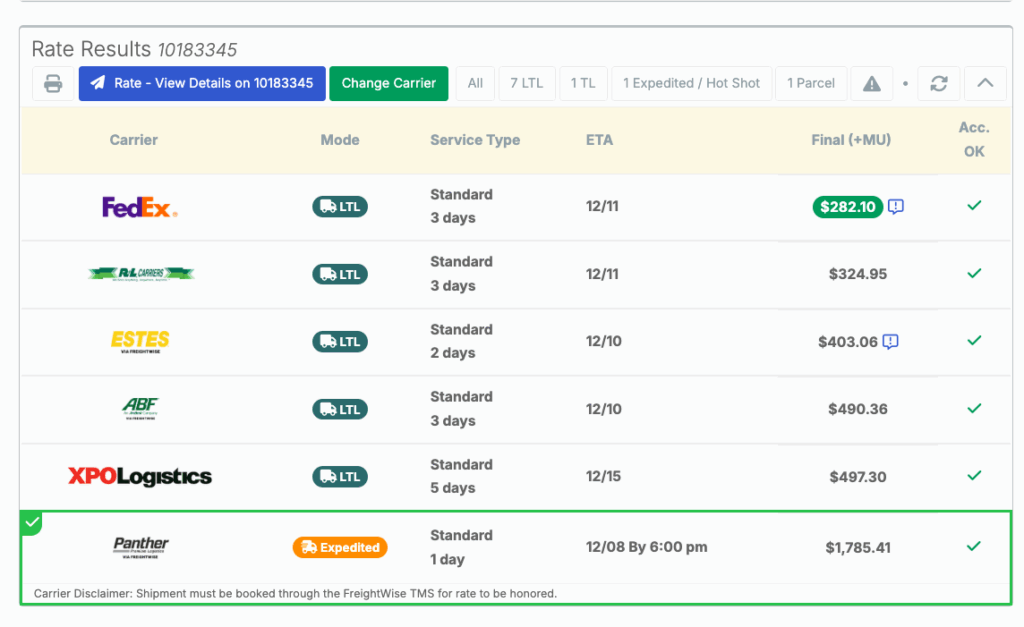
- When you rate your next LTL shipment, Panther Premium Logistics via FreightWise will appear in your rate results. Of note, Panther is a time-sensitive offering, therefore it may show up as a later option in the rate screen.
- Upon selecting the Panther Premium Logistics via FreightWise rate, tender your shipment. This sends a tender request to our Truckload Support team who will personally ensure that your shipment is booked. At the point of tendering, you will be requested to input contact details for our Truckload Support team to contact you to inform you that Panther Premium Logistics via FreightWise has accepted your shipment.
- Upon acception, our Truckload support team will also provide a Pro# and mark your shipment as Accepted in the FreightWise UI.
- The Panther Premium Logistics via FreightWise shipment will be audited by our team and included on your next invoice from FreightWise.
How is pricing determined?
- Panther Premium Logistics via FreightWise is a dynamic rate following market fluctuations meaning it will change with market factors and demand.
When will I start to see Panther Premium Logistics via FreightWise?
- Panther Premium Logistics via FreightWise is available now as an option on loads. As always, the rates are ordered from least cost to most cost carrier, so Panther Premium Logistics via FreightWise will show up in that order.
How will I get billed if I book a Panther Premium Logistics via FreightWise shipment?
- Panther Premium Logistics via FreightWise will be included on your next bill in the same consolidated format you are used to receiving your invoices from FreightWise.
Watch How to Book a Panther Premium Logistics via FreightWise Shipment
New Preferred Carrier Option: Launch of MoLo via FreightWise
Overview:
We’re excited to announce another partner in our Preferred Carrier Program, MoLo via FreightWise. MoLo via FreightWise is a leader in full truckload shipping options.
How it works:
- If you have an upcoming Truckload shipment above 10,000 lbs, MoLo via FreightWise will appear in your rate results.
- Upon tendering, MoLo via FreightWise will auto accept your shipment, no need to wait for your shipment to be accepted.
- The MoLo via FreightWise shipment will be audited by our team and included on your next invoice from FreightWise.
When will I start to see MoLo via FreightWise?
- MoLo via FreightWise is available now as an option on truckload shipments.
How will I get billed if I book a MoLo via FreightWise shipment?
- MoLo via FreightWise will be included on your next bill in the same consolidated format you are used to receiving your invoices from FreightWise.
Watch How to Book a Shipment with MoLo via FreightWise
FreightWise Public API Additions: Updates to Create Shipment API for Carrier Filtering
Overview:
We have made updates to our Public API allowing for integrated FreightWise users to be able to add rate filtering into their “Create Shipment” API call to include or exclude certain modes or carriers when rating.
This gives Integrated FreightWise Users greater control around the results returned within their ERP or WMS from FreightWise and in the FreightWise UI.
Already integrated? Check out our API documentation to make this change. Navigate to “filterCarrierScac” to see the value sending through and how to update your “Create Shipment” API call.
Not integrated? Reach out to your Account Manager or support@freightwisellc.com, and we can talk to you about how to integrate FreightWise into your ERP or WMS.
Commodity Splitting Functionality & Split Pallet Shipping
Overview:
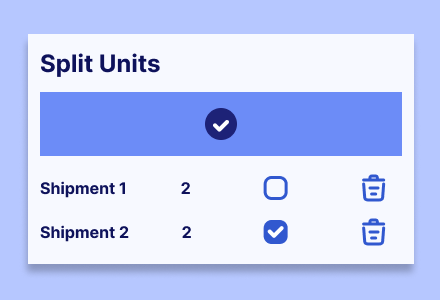
In support of flexibility of mixed pallet shipping, FreightWise TMS now has the ability to split line items with more than 1 unit into additional pallets or lines.
How it works:
- Select the Line Item: Navigate to the shipment, declaration, or order and highlight the specific commodity row you wish to split.
- Initiate Split: Click the “Split” button under the gear icon by your commodity..
- Define Split Parameters:
- Quantity/Weight: Enter the amount to separate from the original line.
- Attributes: Adjust specific details for the new split line (e.g. New Name or if it needs to be on a new pallet).
- Confirm: Click “OK” or “Save” to generate the new separate line item.
- Review: Verify that the original line has been reduced by the split amount and the new line appears correctly.
Watch How to Split Line Items in FreightWise TMS
New Scale & Printer Integrations in FreightWise TMS
Overview:
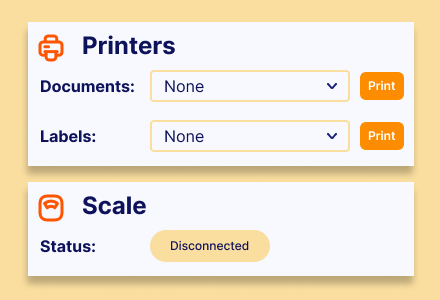
Through the FreightWise Connect App (our Desktop application), you can connect document and label printer configuration and USB scales in FreightWise in the web browser.
How it Works:
Phase 1: Installation
- Download the Installer here.
- Note: FreightWise Connect is only supported on Windows Computers at this time
- Run the Installer:
- Locate the downloaded file (usually in your Downloads folder) and open it.
- Note: If you see a “Windows protected your PC” popup, click “More Info” and then “Run Anyway”.
- Complete Setup:
- Follow the on-screen prompts to complete the installation.
- Once finished, the application should launch automatically.
Phase 2: Connecting a Printer
- Open the App: Click the FreightWise Connect icon in your system tray (bottom right of your screen) or open the application if it isn’t already running.
- Add Printer:
- Document Printers: Any local printer that is already configured on your computer will show in the drop down menu for document printers
- Label Printers: Select the “Managed Network Printer” button to set up your Network ZPL printer. Once configured, select this print from the drop down.
Phase 3: Connecting a Scale (If applicable)
- Connect:
- Ensure your USB scale is plugged into your computer.
- See that the scale details populate on the FreightWise Connect Application
- Verify: Place an item on the scale and check if the weight updates in the application window.
Troubleshooting Tip: If your document printer does not appear, ensure it is properly installed in your computer’s “Printers & Scanners” settings before trying to add it to FreightWise.
Watch How to Connect Printers and USB Scales
What types of printer brands are supported?
Network Zebra label printers and some models with Zebra compatibility modes) and any document printer that is installed on the local machine, and network printers.
What types of USB scales are supported?
Most Fairbanks, Dymo, and Mettler Toledo USB scales are supported.
That’s a wrap!
We are excited for FreightWise users to be able to use these new service options and features. If you have any questions, email support@freightwisellc.com or your Account Manager.